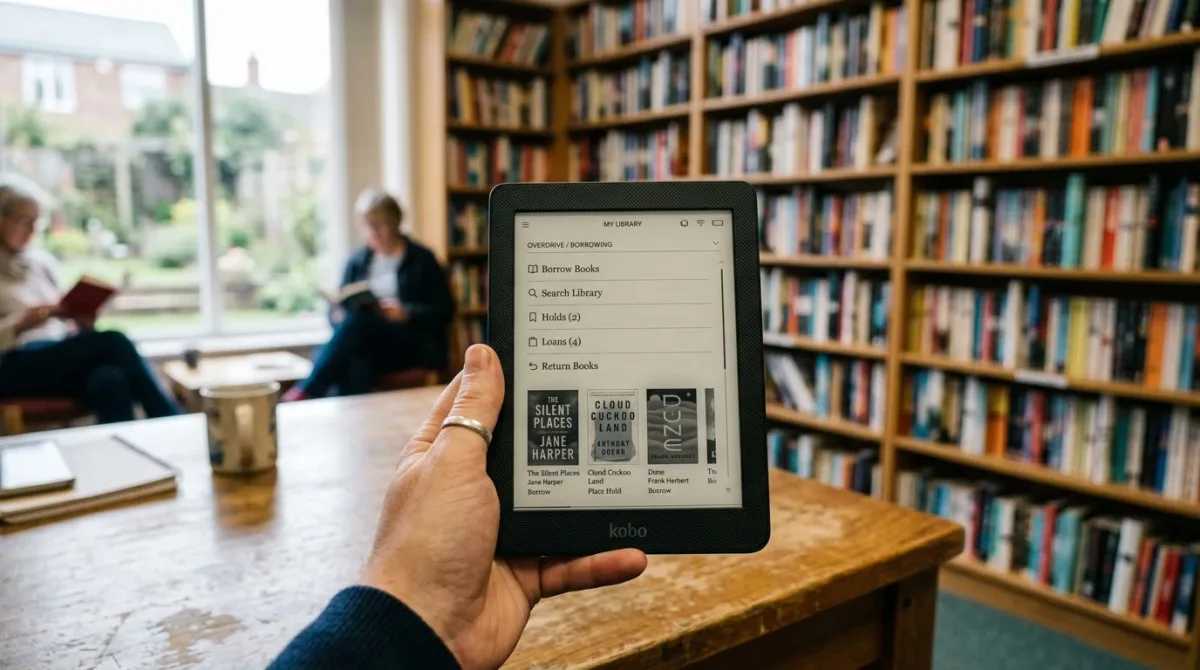
Yes — most Kobo eReaders released since 2016 can borrow library ebooks straight from the device, no computer required, using the built-in Libby integration Rakuten Kobo has built into its firmware. It works with a valid library card, current firmware, a supported Kobo model, and a library that partners with Libby, per Kobo's own support documentation.
Which Kobo eReaders support built-in library borrowing?
The on-device Libby feature is limited to a specific device list, not every Kobo ever sold. Kobo names the Libra Colour, Clara Colour, Clara BW, Elipsa 2E, Clara 2E, Sage, Libra 2, Elipsa, Nia, Libra H2O, Forma, Aura ONE, Aura Edition 2, Aura H2O Edition 2, and Clara HD as supported models, per Kobo's support documentation.
Older devices — the original Kobo Aura, Kobo Touch, and other pre-2016 hardware — are left off that list, which means owners of those models have to fall back on the library-website workaround described further down rather than the in-device app. Kobo's documentation does not give a reason for the cutoff, and none of the sources in this guide establish whether older hardware is technically capable of running Libby or simply wasn't updated for it.
What do I need before I start?
Kobo's requirements are a valid library card from a participating library, an active Wi-Fi connection, and firmware version 4.10 or later, which devices pick up automatically the next time they sync — no manual install needed, per Kobo's support documentation. Kobo also flags that "Overdrive/Libby App may not be available at your local library," so the card alone doesn't guarantee the built-in path works.
Geographic availability is the other gate: the built-in feature currently works only in Canada, the United States, the United Kingdom, Australia, New Zealand, Denmark, Finland, Norway, Sweden, Taiwan, Hong Kong, Singapore, and Thailand, per Kobo. Readers outside those 13 markets can still borrow through a library's own website and transfer the file manually, covered below.
How do I set up Libby on my Kobo?
Kobo's documented setup runs through the device's own menus rather than a separate app download:
- From the Home screen, tap the More icon.
- Go to Settings > Borrowed > Get Started.
- Choose Sign in to Overdrive/Libby App.
- Enter your library's name to locate it.
- Authenticate using the on-screen QR code or the browser URL Kobo provides.
- Enter your library card number and PIN or password, if your library requires one.
- Confirm linking your library account to your Kobo account.
That sequence is Kobo's own, and it replaces an older, separate OverDrive app that the company has been phasing out — since May 1, 2023, opening the legacy OverDrive app has prompted users to switch to Libby instead, per Kobo's support documentation.
How do I borrow and read a book once it's set up?
Once your library account is linked, borrowing happens inside the same Discover interface used for Kobo Store purchases, not a separate app screen. Search for a title through Discover, open its listing, tap More, and select Borrow with Overdrive/Libby App. The book downloads to the device and sits alongside purchased titles in your library.
Loans manage themselves from there: Kobo's documentation states that "items you've borrowed are automatically returned at the end of their lending period," so there's no manual return step and no risk of a forgotten loan blocking your next hold. The trade-off is availability, not mechanics — Kobo is explicit that "some Kobo titles may not be available from your library, and some library titles may not be available from Kobo," so a title search that comes up empty in Discover doesn't necessarily mean the library doesn't own a copy.
What if Libby isn't available at my library, or my Kobo isn't on the supported list?
Kobo documents a second, manual path built around Adobe Digital Editions rather than the on-device app, for readers whose library or hardware falls outside the built-in feature:
- On your library's own website, find its ebook section, select the Overdrive/Libby collection, sign in with your library card, and choose Download (EPUB eBook) to get an .acsm license file.
- Install Adobe Digital Editions on a computer and create — or reuse — an Adobe ID to authorize the software.
- Authorize both the computer and the connected Kobo eReader inside Adobe Digital Editions.
- Open the downloaded .acsm file in Adobe Digital Editions, then drag the resulting book onto your Kobo in the Devices list; it appears on the eReader's home screen once the transfer finishes.
This route requires a computer and a USB cable, and it depends on the library offering an EPUB download option — Kobo's documentation notes "some books may not have a download option" through this method either. It's the fallback for older Kobo hardware and for the minority of libraries the in-device feature doesn't reach, not a universal replacement.
Can I borrow audiobooks or download borrowed books to a computer?
No. Kobo's documentation is explicit that the built-in Libby integration covers ebooks only — audiobook borrowing isn't supported through it — and that borrowed titles can't be downloaded to a computer the way purchased Kobo books can. Renewal options and how many titles you can have out at once are set by each library's own policy, not by Kobo, so those limits vary by library system rather than by device.
Frequently asked questions
- Is Libby the same thing as OverDrive? Functionally yes for a Kobo owner today: OverDrive is the library-lending platform, and Libby is the app that replaced OverDrive's older app front end. Since May 1, 2023, the legacy OverDrive app has redirected users toward Libby, per Kobo's support documentation, though the underlying library systems and licenses haven't changed.
- Does the built-in feature work outside the 13 listed countries? Not for the on-device Libby integration — Kobo lists Canada, the US, UK, Australia, New Zealand, three Nordic countries, Taiwan, Hong Kong, Singapore, and Thailand as supported. Readers elsewhere can still use the library-website-plus-Adobe-Digital-Editions method described above, per Kobo.
- Do I have to remember to return borrowed books? No — Kobo states that borrowed titles are "automatically returned at the end of their lending period," so an expired loan simply stops opening rather than needing an active return step, per Kobo's support documentation.
- What if my Kobo model isn't on the supported device list? Kobo's built-in Libby feature is limited to specific newer models; older eReaders aren't listed as supported for the in-device version. The library-website workaround with Adobe Digital Editions is the documented alternative for those devices, per Kobo.
- Why can't I find a specific library book on my Kobo? Kobo's own documentation acknowledges catalog gaps in both directions — some titles a library owns aren't available through Kobo's borrowing integration, and some Kobo Store titles aren't offered by libraries at all — so a failed search doesn't confirm the library lacks the book.
For a related devices perspective, read Can You Read Library Books on a Kindle? Here's How the Handoff Actually Works.
For more context, read How to Borrow Library E-Books on a Kindle E-Reader.
For more context, read How to Stop Amazon From Saving Your Alexa Voice Recordings.
For more context, read Why Wilton Manors Is Called South Florida's Island City.