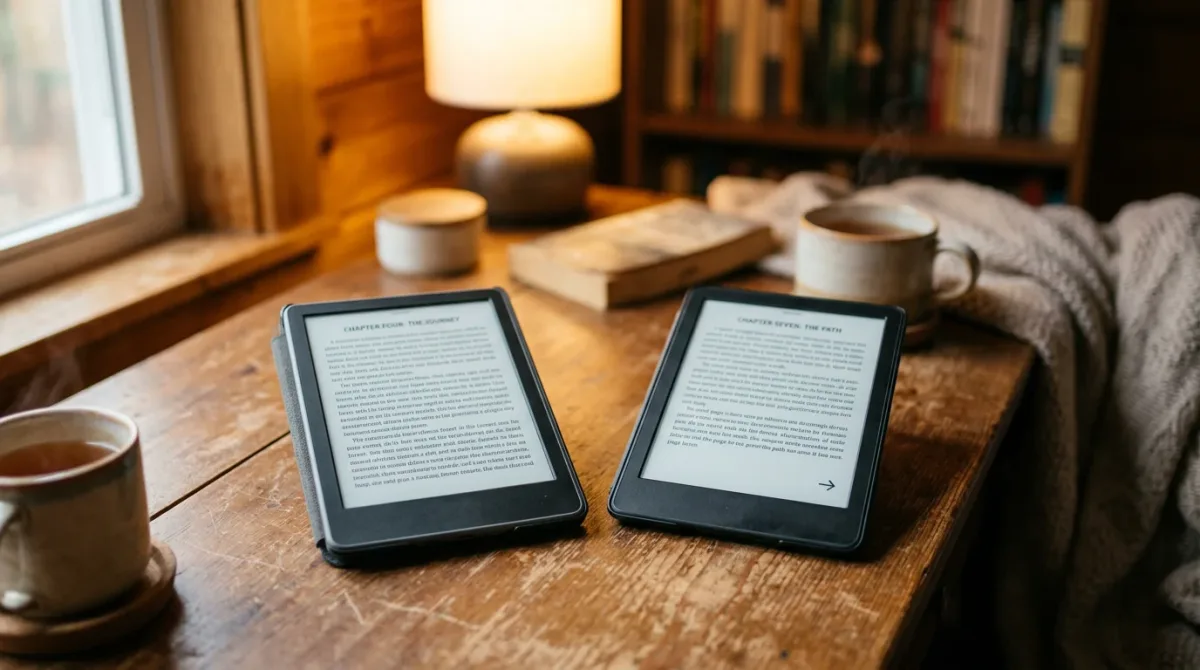
Yes — every Wi-Fi Kindle e-reader can still borrow library e-books, but not through the Libby app most library patrons now carry on their phones. Per OverDrive’s help center, U.S. patrons instead borrow from their library’s classic OverDrive website, choosing the “Kindle Book” format and finishing the loan on Amazon’s own site.
That split trips people up constantly, so here’s the actual mechanics of it, plus the one ecosystem where none of this detour is necessary.
Why Doesn’t the Libby App Work on a Kindle?
Libby, OverDrive’s main lending app, was never built for Kindle hardware. Per Libby’s own device-compatibility page, updated February 26, 2026, it runs on iOS 10+, Android 7.1+, newer Fire tablets via the Amazon Appstore, and web browsers — Kindle e-readers aren’t on that list, and the page offers no workaround.
That list is narrower than it first looks. A Fire tablet is a full Android-based slate, not an E Ink Kindle reader, so owning one doesn’t get Libby running on a Paperwhite or a Scribe. If you read on Kindle hardware specifically, the Libby app itself is a dead end, however current your library card.
How Do You Actually Get a Library E-Book onto a Kindle?
Skip the Libby app and go to your library’s classic OverDrive website instead. There you can search, filter results to the Kindle Book format, borrow the title, and finish delivery through Amazon’s site using the account tied to your Kindle.
- Open your library’s OverDrive website (findable through overdrive.com if you don’t already have the link) and sign in with your library card.
- Run a search and, in the formats filter, select “Kindle Book” — not every library title is offered in this format.
- Select Borrow and choose a lending period.
- Select “Read Now with Kindle.”
- You’ll be redirected to Amazon’s site; select “Get Library Book” there to finish the transfer.
- Once your Kindle has a Wi-Fi connection, the loan appears on the device the same way a purchased title would.
Per OverDrive’s help documentation, updated August 18, 2026, this “Read Now with Kindle” path is currently limited to U.S. libraries — Kindle Books aren’t offered through it elsewhere. The same page notes a Kindle e-reader needs a Wi-Fi connection to pull the download from Amazon’s servers, and that skipping the “Get Library Book” step on Amazon’s site means the loan never reaches the device at all.
Does Every E-Reader Need This Workaround?
No, current Kobo e-readers skip the detour entirely. Per Kobo’s own support pages, recent Kobo models connect straight to a Libby account from the device’s Settings menu, and borrowed titles simply sync down without a phone, browser, or Send-to-Kindle-style handoff.
Per Kobo’s own library-borrowing instructions, the direct integration covers a defined model list — Libra Colour, Clara Colour, Clara BW, Elipsa 2E, Clara 2E, Sage, Libra 2, Elipsa, Nia, Libra H2O, Forma, Aura ONE, Aura Edition 2, Aura H2O Edition 2, and Clara HD — across a defined set of countries, including the U.S., Canada, the U.K., Australia, New Zealand, Denmark, Finland, Norway, Sweden, Taiwan, Hong Kong, and Singapore. Setup happens under Settings, in a “Borrowed” section, where you sign in to your library through OverDrive/Libby with a library-card number and PIN. From there, borrowing runs right from the Discover tab, and per the same Kobo support pages, loans “are automatically returned at the end of their lending period.”
There’s a real limitation worth naming: per Kobo’s own FAQ on the feature, the on-device integration covers e-books only — “borrowing audiobooks using Libby isn’t supported” on the eReader itself.
Reviewing the Kobo Libra 2, Engadget found the on-device integration meaningfully smoother than the Kindle alternative, writing that “while Amazon’s Send-to-Kindle feature is also an easy way to get library books from Libby to a Kindle,” the direct Kobo connection was more convenient because borrowed titles simply appeared on the device once she was signed in.
Kindle vs. Kobo: Library Borrowing at a Glance
| Kindle | Kobo (supported models) | |
|---|---|---|
| Borrowing method | Library’s classic OverDrive website, format “Kindle Book” | Built-in Libby integration via device Settings |
| Extra step | Redirect to Amazon, “Get Library Book” | None — syncs on next connection |
| Region | U.S. libraries only, per OverDrive | U.S., Canada, U.K., Australia, New Zealand, and several more, per Kobo |
| Audiobooks | Not addressed in OverDrive’s Kindle-borrowing instructions | Not supported on-device, per Kobo |
What Isn’t Settled Here
Neither OverDrive’s nor Kobo’s help pages spell out the DRM mechanics behind either path, and Libby’s compatibility page doesn’t explain why Kindle was left off — it simply isn’t listed. If your library doesn’t offer the Kindle Book format for a given title, the OverDrive-website route won’t help regardless of your device; check the format filter before assuming a title is unavailable everywhere.
For a related e-readers perspective, read Can You Read Library and Purchased Books on Any E-Reader?.
For more context, read How to Borrow Library eBooks on a Kobo eReader.
For more context, read How the VAT refund actually works when you shop in Europe.
For more context, read How to Stop Amazon From Saving Your Alexa Voice Recordings.